Thinkfree Drive
Open and edit documents stored in Thinkfree Drive with Thinkfree Office. Thinkfree Drive includes an HTTP Storage Provider, so no separate Provider server is needed. This guide connects Thinkfree Drive to a separate Thinkfree Office installation.
Before connecting
- For Thinkfree Drive installation and the Trial with Thinkfree Office already connected, see Document Management SDK's Set up Thinkfree Drive. You do not need to replace the Trial's preconfigured connection with the settings in this guide.
- For a separate Thinkfree Office installation, prepare both a Thinkfree Drive license and a Thinkfree Office license. Thinkfree Drive Free Commercial does not include Thinkfree Office.
- The Thinkfree Drive backend and the user's browser must reach the Thinkfree Office address. The Thinkfree Office server must reach the Thinkfree Drive Provider address.
- To use Ticket, enable it in Thinkfree Office startup settings.
Browser access and cookies
Configure Thinkfree Drive and Thinkfree Office cookies separately, using the address that the browser opens for each service. If an ALB or Ingress provides HTTPS and forwards requests to a container over HTTP, use the HTTPS settings. These settings assume that Thinkfree Drive's frontend and API are served from the same site.
Thinkfree Drive login cookies
For an HTTP Thinkfree Drive address:
DRIVE_AUTH_COOKIE_SECURE=false
DRIVE_AUTH_COOKIE_SAME_SITE=Lax
For an HTTPS Thinkfree Drive address:
DRIVE_AUTH_COOKIE_SECURE=true
DRIVE_AUTH_COOKIE_SAME_SITE=Lax
Pass these variables to the Thinkfree Drive process. They control Thinkfree Drive's login cookies; they do not configure Thinkfree Office cookies or the HTTP Storage request signing key. The Thinkfree Drive defaults are Secure=false and SameSite=Lax.
Unlike the tenant's initial Thinkfree Office connection values, these cookie variables apply each time Thinkfree Drive starts. Pass them through Docker --env-file or Compose environment/env_file, and recreate the container to apply changed values. Preserve the existing database, storage and volume configuration. For other Thinkfree Drive installation settings, see Set up Thinkfree Drive.
Choose where to open Viewer and Editor
Apply the Thinkfree Office cookie settings as well. For Thinkfree Drive and Thinkfree Office on different sites, use the following opening methods based on the Thinkfree Office address saved in Thinkfree Drive.
| Thinkfree Office address | Viewer | Editor |
|---|---|---|
| HTTPS | Embed in a Thinkfree Drive iframe, if the browser and Thinkfree Office framing policy allow it | Open the Thinkfree Office URL in a new tab |
| HTTP | Open the Thinkfree Office URL directly in a new tab | Open the Thinkfree Office URL directly in a new tab |
For HTTP Thinkfree Office, a new tab containing a Thinkfree Drive page that embeds Thinkfree Office is still an iframe integration. The new tab must open the Thinkfree Office URL itself. If your Thinkfree Drive version only opens Viewer in an iframe, cookie settings alone cannot make cross-site HTTP previews work; use an integration that opens the Thinkfree Office URL directly.
An HTTPS Thinkfree Drive page cannot embed HTTP Thinkfree Office because browsers block mixed content. An HTTP Thinkfree Drive page can embed HTTPS Thinkfree Office if the cookie and framing requirements are met. For HTTPS Thinkfree Office, browser privacy settings may still require opening Viewer in a new tab.
After changing settings, close existing document windows and open documents again from Thinkfree Drive. Ticket mode requires a fresh ticket. Verify Viewer access, Editor access and saving using the actual browser addresses. These browser cookie settings do not replace the credentials used by Thinkfree Office to call Thinkfree Drive's HTTP Storage Provider.
Connection flow and credentials
With Ticket, the Thinkfree Drive backend checks the user's file access before requesting a ticket from Thinkfree Office. The Thinkfree Drive frontend opens the document using the URL containing that ticket. With both Ticket and Legacy, Thinkfree Office calls Thinkfree Drive's HTTP Storage Provider to read and save files.
Requests between the two servers use different credentials.
| Credential | Request direction | Purpose |
|---|---|---|
| Ticket issuance service token | Thinkfree Drive backend → Thinkfree Office | Thinkfree Office authenticates the server requesting a ticket. Thinkfree Drive sends the token in Authorization: Bearer <office-ticket-service-token>. |
| HTTP Storage request signing key | Thinkfree Office → Thinkfree Drive Provider | Thinkfree Office signs file-operation requests and Thinkfree Drive verifies them. Thinkfree Office sends a signed JWT in X-TFO-Storage-Request-JWT, not the key itself. |
Use different values for the service token and request signing key. Their purposes and request directions differ; keeping them separate lets you replace either credential independently. Thinkfree Drive checks the request signature, validity period, and signed path, method and body information. Requests that pass these checks must also pass document-session and user file-permission checks.
Thinkfree Office's TFO_DOCUMENT_OPEN_TICKET_JWT_SECRET, used to sign tickets, is separate from both values above. Only Thinkfree Office keeps this key. The browser receives a URL containing the issued ticket, not the service token or either signing key.
If Thinkfree Drive denies file access, it does not request a ticket. If Thinkfree Office rejects the ticket or Thinkfree Drive rejects a file-operation request, the affected opening or saving operation fails. Operations beyond the illustrated info/get/put, such as locking, use the same HTTP Storage request verification.
1. Prepare connection values
Prepare these values for the Thinkfree Drive tenant you want to connect.
| Value | Where to use it |
|---|---|
| Thinkfree Office address | Enter a Thinkfree Office base address such as https://office.example.com in Thinkfree Drive. Thinkfree Drive adds the ticket issuance and opening paths. |
| Opening mode | Select ticket if Thinkfree Office allows Ticket, or legacy if Thinkfree Office allows Legacy. Whether the document opens for editing or viewing is a separate choice. |
| Ticket service token | Copy Thinkfree Office's TFO_DOCUMENT_OPEN_TICKET_ISSUE_SERVICE_TOKEN into Thinkfree Drive. Required for Ticket; not used for Legacy. |
| HTTP Storage adapter name | Use the same name in Thinkfree Drive and Thinkfree Office, for example drive-acme. Letters, numbers, _, -; at most 128 characters, starting with a letter or number. |
| HTTP Storage request signing key | Generate a separate secret of at least 32 UTF-8 bytes and configure the same value in Thinkfree Drive and Thinkfree Office's HTTP Storage adapter. Required for Ticket and Legacy. |
| Provider base URL | Enter https://drive.example.com/t/acme/api/v1 in Thinkfree Office for the Thinkfree Drive tenant at /t/acme. Without tenant-path routing, use https://drive.example.com/api/v1. |
Thinkfree Office appends /tfo-http-storage/v1 and the operation path to the Provider base URL. Do not append that suffix yourself or use /api/public/v1. If a proxy sits in front of Thinkfree Drive, it must preserve the tenant path.
2. Configure the Thinkfree Office connection in Thinkfree Drive
For a new installation, save the settings using either environment variables or the administrator form. Use the form to change an existing tenant connection. Thinkfree Drive stores connection settings per tenant.
New installation: initialize with environment variables
Thinkfree Drive saves the following values only when there is one active SELF_MANAGED tenant with no Thinkfree Office connection configured. It skips initialization if there are no eligible tenants or more than one. It preserves an existing Thinkfree Office address, connection choice (including Do not connect), or service-managed Thinkfree Office settings. These variables do not configure every tenant globally.
| Thinkfree Drive environment variable | Value / default |
|---|---|
DRIVE_INITIAL_OFFICE_DOMAIN | Thinkfree Office base address. Empty by default; an empty value skips Thinkfree Office initialization. |
DRIVE_INITIAL_OFFICE_CONNECTION_TYPE | onPremise for this integration; default onPremise. |
DRIVE_INITIAL_OFFICE_AUTH_MODE | ticket or legacy; default ticket. Do not supply an empty string. |
DRIVE_INITIAL_OFFICE_ADAPTER_NAME | Matching adapter name. If omitted, Thinkfree Drive uses the tenant number, such as 1. Explicitly set the name you will register in Thinkfree Office. |
DRIVE_INITIAL_OFFICE_TICKET_SERVICE_TOKEN | Thinkfree Office's issuance service token; required for ticket. |
DRIVE_INITIAL_OFFICE_HTTP_STORAGE_REQUEST_JWT_SECRET | Matching HTTP Storage signing key; required, at least 32 UTF-8 bytes. |
The Bash commands below use OpenSSL. Run them beside the office-ticket.env created in Thinkfree Office settings. Replace the example Thinkfree Office address with your server address. The commands reuse Thinkfree Office's service token, generate a separate HTTP Storage key, and save them in drive-office.env. Run them once and reuse the generated file.
set -a
. ./office-ticket.env
set +a
umask 077
{
  printf '%s\n' 'DRIVE_INITIAL_OFFICE_DOMAIN=https://office.example.com'
  printf '%s\n' 'DRIVE_INITIAL_OFFICE_CONNECTION_TYPE=onPremise'
  printf '%s\n' 'DRIVE_INITIAL_OFFICE_AUTH_MODE=ticket'
  printf '%s\n' 'DRIVE_INITIAL_OFFICE_ADAPTER_NAME=drive-acme'
  printf 'DRIVE_INITIAL_OFFICE_TICKET_SERVICE_TOKEN=%s\n' "$TFO_DOCUMENT_OPEN_TICKET_ISSUE_SERVICE_TOKEN"
  printf 'DRIVE_INITIAL_OFFICE_HTTP_STORAGE_REQUEST_JWT_SECRET=%s\n' "$(openssl rand -hex 32)"
} > drive-office.env
Pass this file to the Thinkfree Drive container through Docker --env-file or Compose env_file. Keep your existing database, storage, port and volume configuration. Keep the file private and out of source control.
Thinkfree Drive validates settings using the same rules as the administrator form. If values are invalid, Thinkfree Drive does not save them; it logs the failure and continues starting. Check the saved values in the administrator form after startup. Changing environment variables and restarting does not overwrite saved settings. Use the form below after failed initialization or to change existing values.
Additional variables TFO_TICKET_OPEN_TTL (default 60s) and TFO_STORAGE_SESSION_TTL (default 24h) set the initial ticket-open deadline and Thinkfree Drive document-session lifetime respectively. Set both on the Thinkfree Drive process. The ticket-open deadline does not close an already-open document.
Configure or change settings in the administrator form
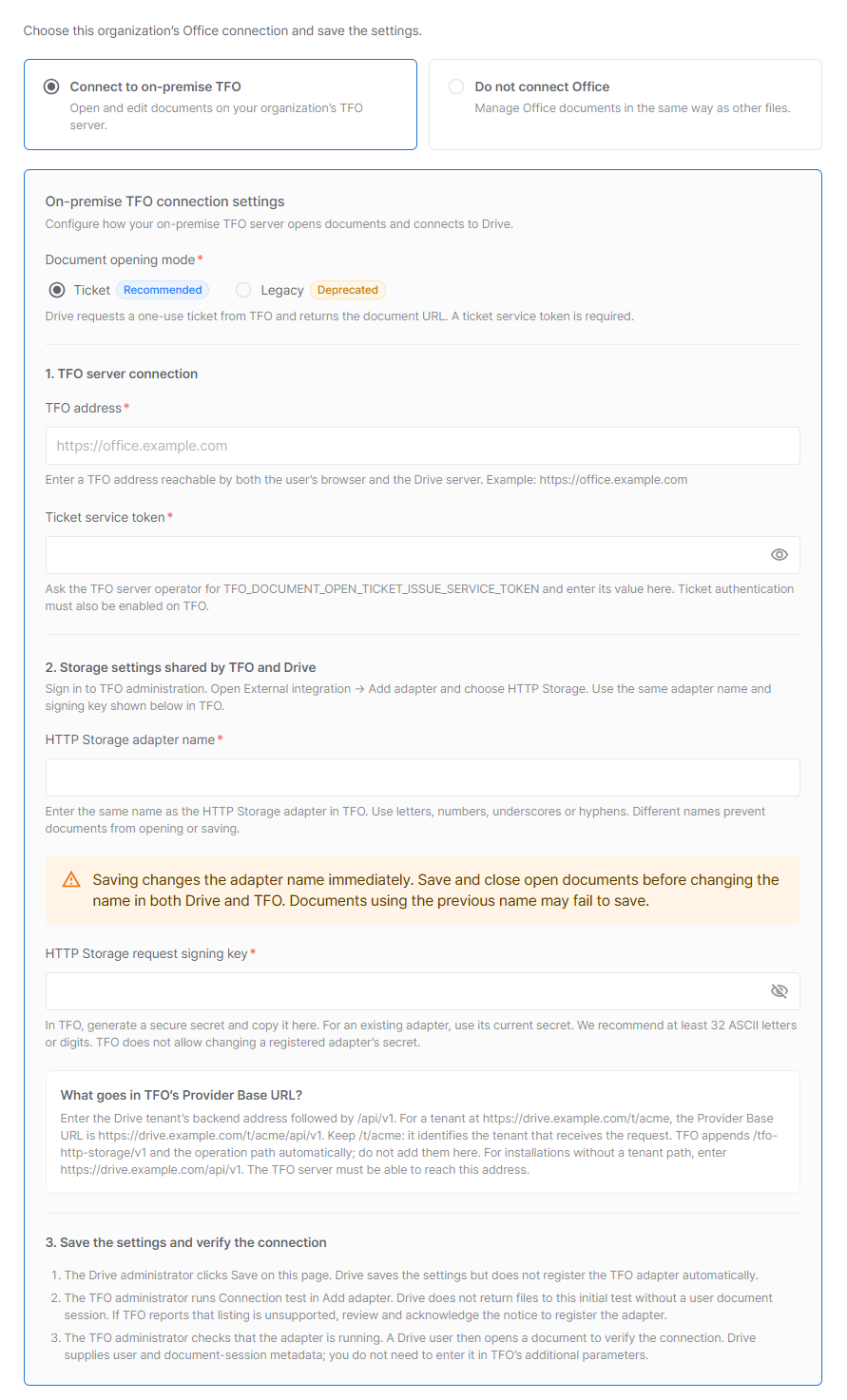
- Sign in to Thinkfree Drive as the tenant administrator and open System Settings > Thinkfree Office.
- Select Connect to on-premise TFO.
- Enter the Thinkfree Office address and connection values. Choose the recommended Ticket opening method. Legacy does not require a service token, but still requires the HTTP Storage request signing key.
- Save the settings. If environment-variable initialization succeeded, you can verify the saved values in this form.
3. Register the Thinkfree Drive adapter in Thinkfree Office
Save the Thinkfree Drive settings before continuing.
- Sign in to Thinkfree Office Admin and open External linkage > Add Adapter > HTTP Storage.
- Set Name to
drive-acmeand Request signing secret to the HTTP Storage request signing key saved in Thinkfree Drive. Do not enter the ticket service token in the signing-key field. - Set Provider base URL to
https://drive.example.com/t/acme/api/v1, replacing the address and tenant path with those for your installation. - Run Test connection. Thinkfree Drive returns
LIST_NOT_SUPPORTEDfor a root listing without a user document session. Thinkfree Office allows registration after you acknowledge that adapter-level browsing is unavailable; documents authorized through Thinkfree Drive can still open and save. Resolve authentication, routing and connection errors first. - Register the adapter and confirm that it is running. See the HTTP Storage registration form for field details.
4. Verify opening and saving
- Sign in to Thinkfree Drive as a user and upload a test Thinkfree Office document.
- Open the document from Thinkfree Drive. Thinkfree Drive checks file access and prepares the document session required by its Provider. API integrations call Open a document in Thinkfree Office. A Thinkfree Office URL containing only a Thinkfree Drive file path cannot replace this step.
- Edit the document, wait for automatic save, and close it.
- Reopen the document from Thinkfree Drive and download the stored file to verify that the changes were saved.
Issuing a ticket does not guarantee that opening or saving will succeed. If either fails, check the Provider address, tenant path, adapter name and matching HTTP Storage request signing key. See Create document URLs for Ticket and Legacy request and response examples.