Use the AI included with Thinkfree Office
The Thinkfree Office has a built-in AI Agent panel. To use it you write no code: an administrator registers the model in the AI settings of Thinkfree Office Admin, and users edit documents with the panel inside Thinkfree Office. This is method 5 in the integration table.
The same settings are also used by the default "office" setting of the headless agent and
mountChat(), so registering a model here is also the first step for those methods.
Before you begin
- A running Thinkfree Office deployment and a Thinkfree Office Admin account. See Configure Thinkfree Office settings for how to sign in to Thinkfree Office Admin.
- The relay server that ships with Thinkfree Office, reachable at an address such as
https://<office-domain>/ai-agent/relay. Thinkfree Office sends model requests to this relay, and the relay adds the API key and calls the provider. - An API key from the LLM provider you will use. A self-hosted OpenAI-compatible server, such as Ollama or vLLM, may not need one.
Register the model
Open Thinkfree Office Admin, go to Setting, and select AI. Enter the following under Relay Server settings.
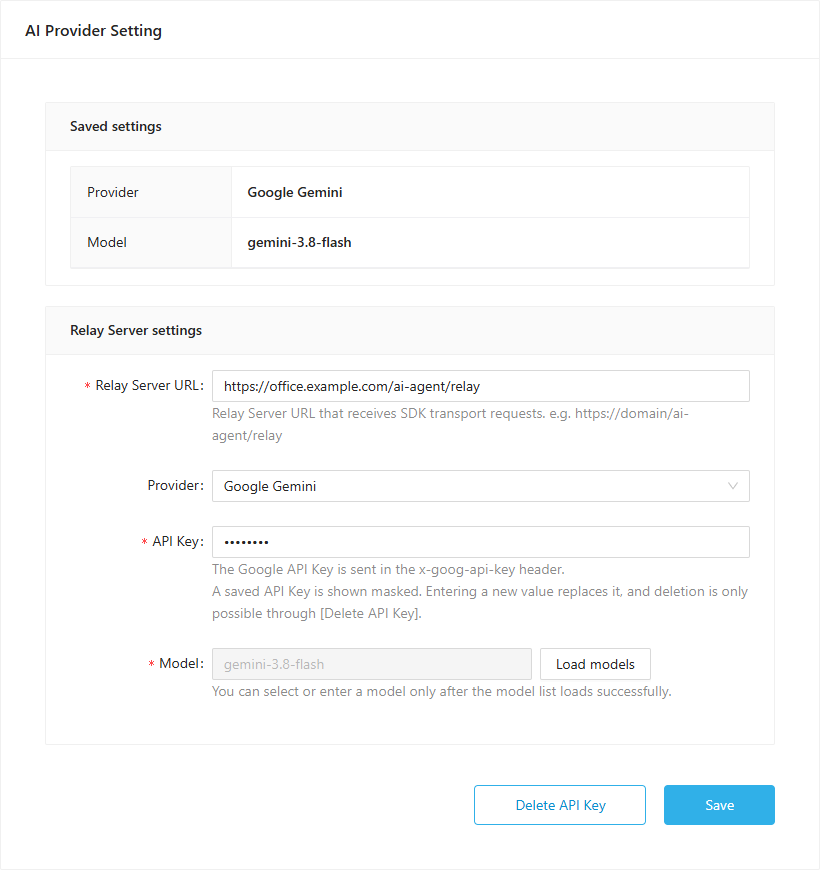
| Field | What to enter |
|---|---|
| Relay Server URL | The address of the relay that receives model requests, for example https://<office-domain>/ai-agent/relay |
| Provider | Anthropic, OpenAI, Google Gemini, OpenRouter, or OpenAI-compatible (custom endpoint) |
| Endpoint | Only for OpenAI-compatible (custom endpoint): the base URL of the server, for example http://127.0.0.1:11434/v1. The relay server must be able to reach it |
| API Key | The provider's API key. Optional only for OpenAI-compatible (custom endpoint) |
| Model | Click Load models after entering the API key, then choose a model from the list or type its ID |
Click Save. The Saved settings card at the top shows the provider and model now in use.
- The model list is loaded through the provider with the API key you entered. If loading fails, check the API key and whether the server can reach the provider.
- A saved API key is shown masked. Typing a new value replaces it; Delete API Key removes the key together with the saved model.
- The API key is stored on the Thinkfree Office server and is never sent to the browser.
Check in Thinkfree Office
Open a document in Thinkfree Office and open the AI Agent panel. Ask for a small edit, for example "Add the heading 'Quarterly summary' at the top", and check that the document changes. If you changed the settings, check with a newly opened document.
Next steps
- To build your own chat UI or agent loop with the same settings, see the headless agent or
mountChat(). - To use a model different from the Thinkfree Office settings, or run your own relay, see Relay server.