Connect a Host Storage adapter
A Host Storage adapter uses a directory on the server running Office as document storage. For Office running in Docker, specify a directory accessible inside the container.
Check the preconnected adapter
The Trial and Free Commercial container images include a preconnected Host Storage adapter named host-storage so you can immediately test opening and saving documents.
Its document root directory is /home/thinkfree/docs inside the container, where the image's sample documents are stored. You do not need to register this adapter again.
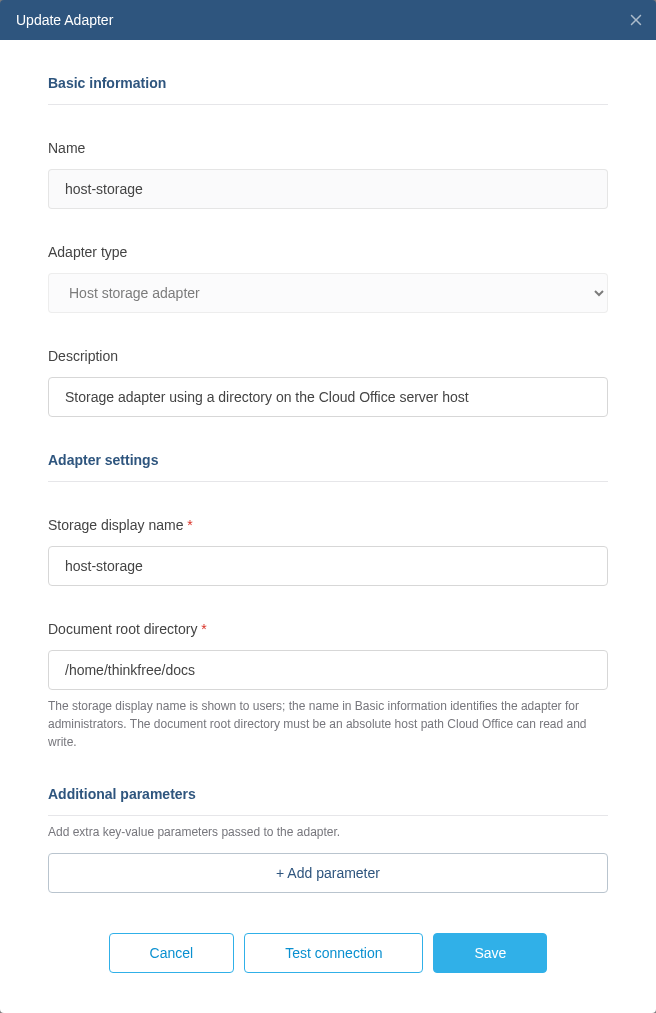
Sign in to the Office admin page and find host-storage under External linkage.
Click the Update icon in its row to check the document root directory and storage display name.
Create a document URL for the preconnected adapter
A document URL combines the Office address, registered adapter name, and relative path under the document root. Use the following URL format to open a Word document in the editor.
{OFFICE_URL}/cloud-office/api/{ADAPTER_NAME}/{DOCUMENT_PATH}/open?app=WORD_EDITOR&user_id={USER_ID}&docId={DOCUMENT_ID}
Use the Name shown in the admin page for ADAPTER_NAME.
The Storage display name is not used in the URL.
For DOCUMENT_PATH, use the relative path without the document root directory.
This example uses the adapter name host-storage and document root /home/thinkfree/docs shown above. If this directory contains sample.docx, use the following values.
| Field | Value |
|---|---|
| Office address | http://localhost:8080 |
| Adapter name | host-storage |
| Document root directory | /home/thinkfree/docs |
| File inside the container | /home/thinkfree/docs/sample.docx |
| Document path in the URL | sample.docx |
http://localhost:8080/cloud-office/api/host-storage/sample.docx/open?app=WORD_EDITOR&user_id=local-user&docId=hostsample001
Replace user_id with your user identifier and docId with a unique ID identifying the document in Office.
If your Office address or port differs, update the beginning of the URL as well.
See Create document URLs for app values for other document formats and a JavaScript URL builder.
Mount a document directory
The /home/thinkfree/docs directory used above contains sample documents inside the container. It is separate from the document folders on the host computer running Docker.
To open documents stored on the host computer in Office, you must mount their folder at /home/thinkfree/docs inside the container.
The following Linux example connects a user's /home/username/personal-documents folder. Replace this with the absolute path to your document folder, and check that the folder exists and Office has read and write access.
Add the following option to your Office run command when creating the container.
-v "/home/username/personal-documents:/home/thinkfree/docs"
The path to the left of the colon (:), /home/username/personal-documents, is the folder on the host computer. The path to the right, /home/thinkfree/docs, is where Office accesses that folder inside the container.
Keep Document root directory set to /home/thinkfree/docs in the admin page.
While the folder is mounted, this path shows the host folder's documents. The image's sample documents are not automatically copied into the host folder, so mounting an empty folder also leaves the samples unavailable at this path. Edits saved in Office are written to the files in the mounted host folder.
Document URLs for the mounted directory
With this mount, /home/username/personal-documents/contracts/Proposal 2026.docx on the host computer
appears as /home/thinkfree/docs/contracts/Proposal 2026.docx inside the container.
Because you are using the preconnected host-storage adapter, use contracts/Proposal 2026.docx, the path relative to the document root, in the URL.
http://localhost:8080/cloud-office/api/host-storage/contracts/Proposal%202026.docx/open?app=WORD_EDITOR&user_id=local-user&docId=hostproposal001
Preserve / between directories and URL-encode each path segment, such as %20 for spaces in the example above.
Do not include the host path /home/username/personal-documents or the container document root /home/thinkfree/docs in the URL.
Add another Host Storage adapter
To connect a different host document folder to the preconnected host-storage adapter, change the mount as shown above.
To use a separate adapter, mount an additional directory and register a new adapter as follows.
This example connects /home/username/work-files on the host to /home/thinkfree/team-documents inside the container.
Replace the path on the left with your actual document folder and check that Office can read and write it. Add the following option to the Office run command when creating the container.
-v "/home/username/work-files:/home/thinkfree/team-documents"
Host Storage can access files and directories on the server running Office. For security, new Host Storage adapter registrations are disabled by default. To register a new adapter, also add the following option to the Office run command.
-e TFO_ADAPTER_HOST_STORAGE_ENABLED=true
Once Office is running, register the adapter in the admin page.
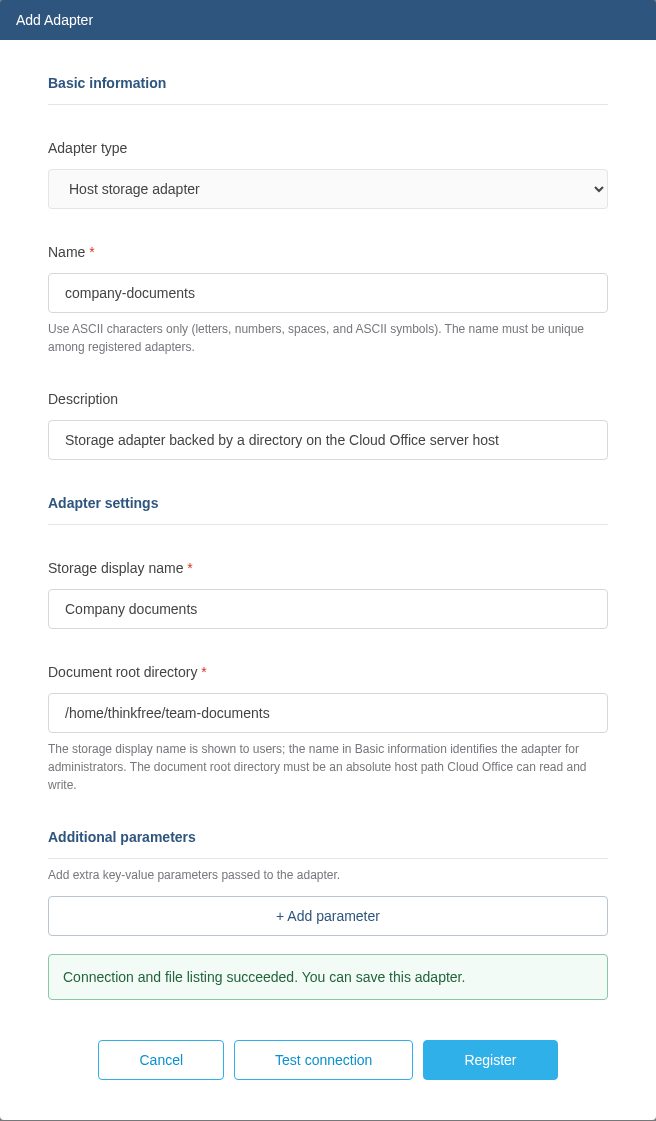
- Under External linkage, click Add Adapter.
- Select Host storage adapter as the Adapter type.
- Enter the following values.
| Field | Value to enter |
|---|---|
| Name | A unique adapter name for document URLs. Example: company-documents |
| Description | What the adapter is used for |
| Storage display name | The storage name shown to users. Example: Company documents |
| Document root directory | An absolute path inside the container that Office can read and write. Example: /home/thinkfree/team-documents |
- Click Test connection to check that Office can access the directory and list its files.
- If the test succeeds, click Register and check that the adapter is running in the list.
The screenshot below shows the example values after a successful connection test.
If the connection test fails, check that the directory is mounted and Office can access it. Enter the path inside the container in the admin page, not the host path.
Document URLs for an adapter connected to another directory
Use the path relative to the new document root when opening a document through company-documents.
This example assumes the host directory contains reports/Quarterly Report.docx.
| Field | Value |
|---|---|
| Adapter name | company-documents |
| Document root directory | /home/thinkfree/team-documents |
| File on the host computer | /home/username/work-files/reports/Quarterly Report.docx |
| Document path in the URL | reports/Quarterly Report.docx |
http://localhost:8080/cloud-office/api/company-documents/reports/Quarterly%20Report.docx/open?app=WORD_EDITOR&user_id=local-user&docId=companyreport001
See Create document URLs for all URL options.
Verify opening and saving documents
Follow the examples above to create a document URL for an actual file and open it in your browser. Edit and save the document, then reopen it to check that your changes persist.
Browse documents in the admin page
Check that company-documents is running in the adapter list under External linkage.
Click the folder-shaped Browse files button next to the adapter name.
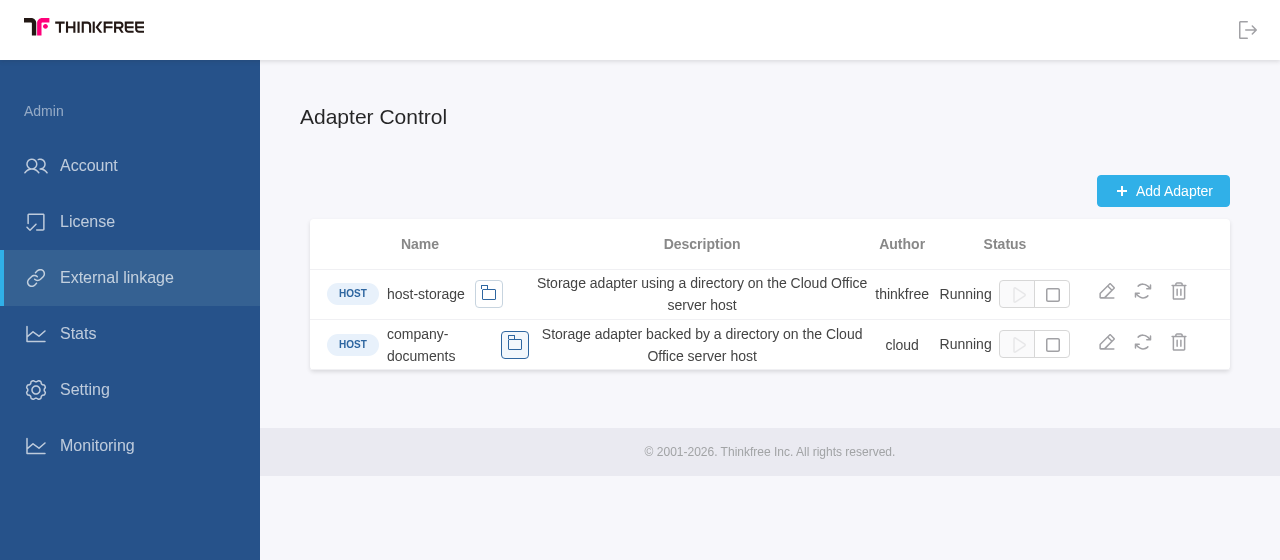
Select a directory in File browser to open it.
Select the reports directory in this example to find Quarterly Report.docx.
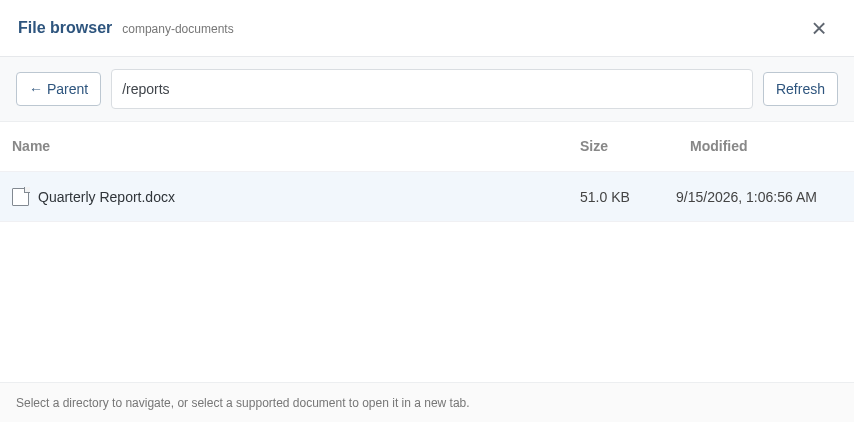
Click an Office document to open the Office editor in a new tab.