Connect an S3 adapter
An S3 adapter connects a bucket in AWS S3 or S3-compatible storage as Office document storage. Use the entire bucket or specify a prefix to limit access to documents under a particular path.
Prepare connection details
Prepare the bucket, region, and access key you will use. The keys need permission to list, read, and write within the document scope you intend to use. For S3-compatible storage, also check the service endpoint and its SSL and path-style requirements.
Add an S3 adapter
The screenshot below shows the AWS S3 registration form in the admin page. Enter the values for your storage service.
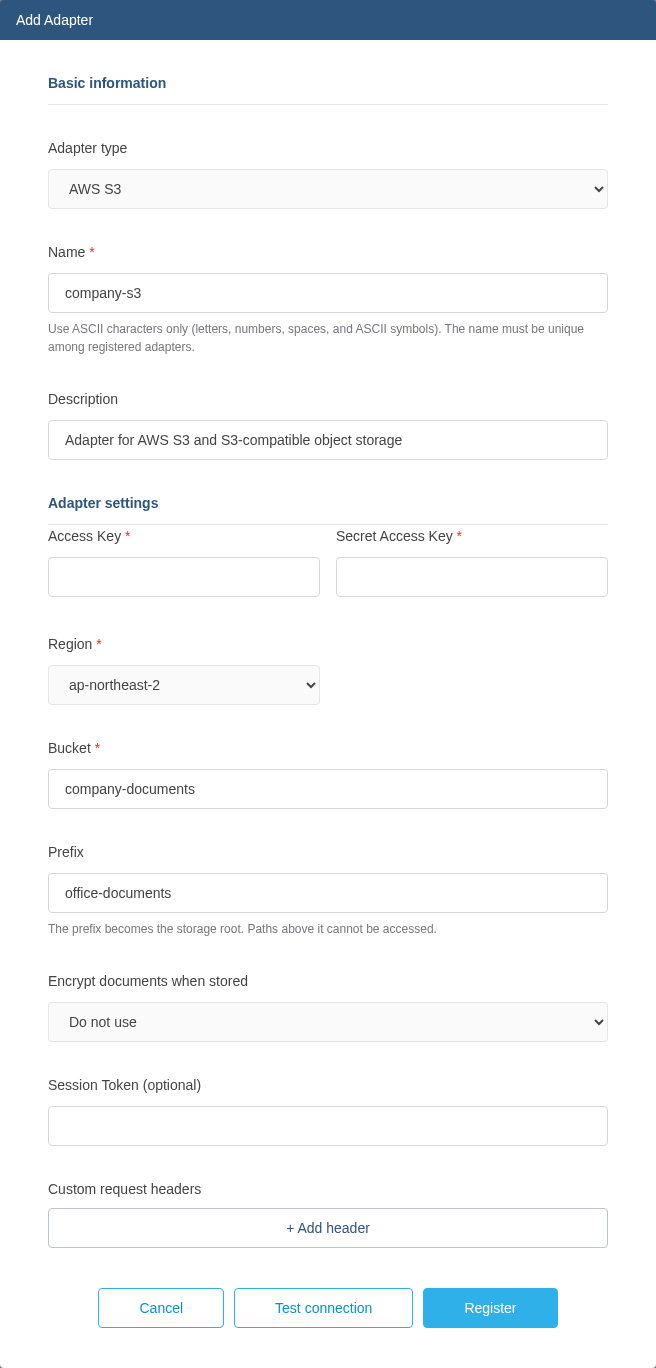
- Under External linkage in the Office admin page, click Add Adapter.
- Select AWS S3 or S3 compatible as the Adapter type.
- Enter the following connection details.
| Field | Value to enter |
|---|---|
| Name | A unique adapter name for document URLs. Example: company-s3 |
| Description | What the adapter is used for |
| Access Key | The access key used to access the bucket |
| Secret Access Key | The secret corresponding to the access key |
| Region | The bucket region. Select Enter manually if it is not listed |
| Bucket | The bucket name only, without s3:// or a path |
| Prefix | The path to use, such as office-documents. Leave empty to use the bucket root |
| Session Token | The session token supplied with temporary credentials |
Additional fields for S3-compatible storage
| Field | Value to enter |
|---|---|
| Endpoint | The storage domain or IP address and port. Example: storage.example.com:9000 |
| Force Path Style | Select Use if required by the storage service |
| Use SSL | Select Use for HTTPS or Do not use for HTTP |
Do not include a path or query string in the endpoint. If you include http:// or https:// in the address,
match the Use SSL selection to that protocol.
Document encryption
Select Encrypt documents when stored and enter a Document encryption key to encrypt documents when saving them. Use Generate secure key, or enter a Base64-encoded 32-byte key. Existing documents are also encrypted when opened and saved. The encryption setting and key cannot be changed after registering the adapter.
Documents stored in S3 remain encrypted even if you lose the encryption key or delete the S3 adapter configured for encryption. You cannot open them without restoring the same encryption key and connection settings. Keep a separate, secure copy of the key and adapter settings.
Test and register the connection
- Click Test connection.
- If the connection and file listing succeed, click Register.
- Create a document URL using the registered adapter name and the document path relative to the prefix.
- Open a test document, edit and save it, then reopen it to check that your changes persist.
A successful file listing does not confirm permission to save documents. If the connection test fails, check the keys, region, bucket, endpoint, and list permissions. If documents open but cannot be saved, check write permissions.
Create a document URL
Use the adapter name company-s3, bucket company-documents, and prefix office-documents entered in the screenshot above. This example opens reports/Quarterly Report.docx under that prefix.
| Field | Value |
|---|---|
| Office address | http://localhost:8080 |
| Name | company-s3 |
| Bucket | company-documents |
| Prefix | office-documents |
| Object key in the bucket | office-documents/reports/Quarterly Report.docx |
| Document path in the URL | reports/Quarterly Report.docx |
Append /cloud-office/api/, the adapter name, the path relative to the prefix, and /open to the Office address.
http://localhost:8080/cloud-office/api/company-s3/reports/Quarterly%20Report.docx/open?app=WORD_EDITOR&user_id=local-user&docId=s3report001
The bucket name, region, and prefix come from the adapter settings, so do not repeat them in the Office URL. If Prefix is empty, the entire object key is the relative document path. S3-compatible storage uses the same URL format.
Replace the Office address and port, adapter name, and document path with your actual values. Preserve / between directories and URL-encode each path segment, such as %20 for spaces. See Create document URLs for user identifiers and the unique ID identifying the document in Office (docId), app values for each file type, and all options.