Configure Office Settings
Office Admin lets you manage licenses, document storage connections, service settings, and the status of your running Office instance. Start the container as described in Set up Office, then open Office Admin.
Open Office Admin
If you ran Office locally with the command above, open the following address.
If you changed the port used to access Office, replace 8080 in the URL with that port number.
http://localhost:8080/cloud-office/account
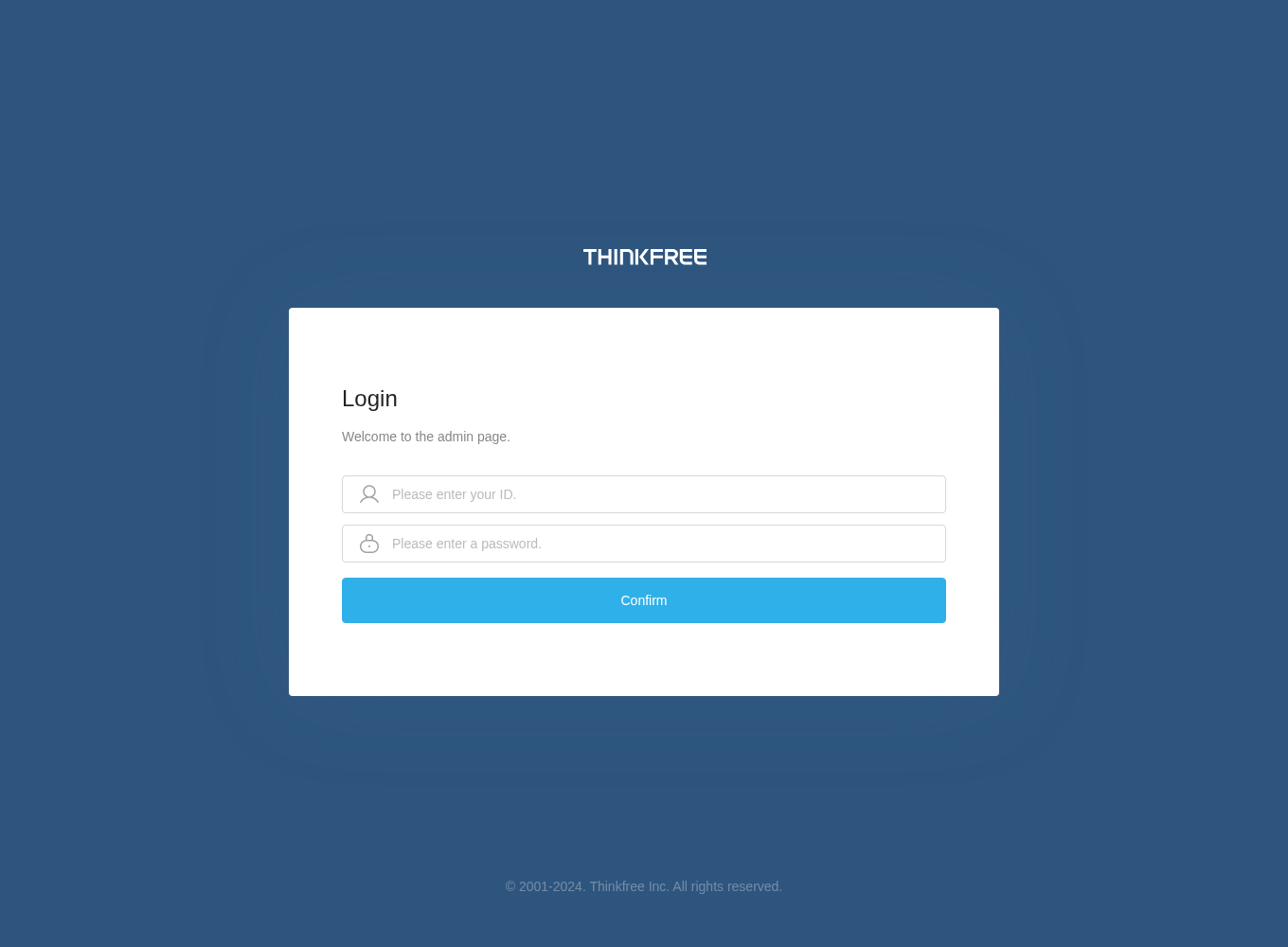
Sign in with the default ID cloud and password weboffice. If you changed the administrator account, use the updated ID and password.
After signing in, check that Account, License, External linkage, Stats, Setting, and Monitoring appear in the left menu.
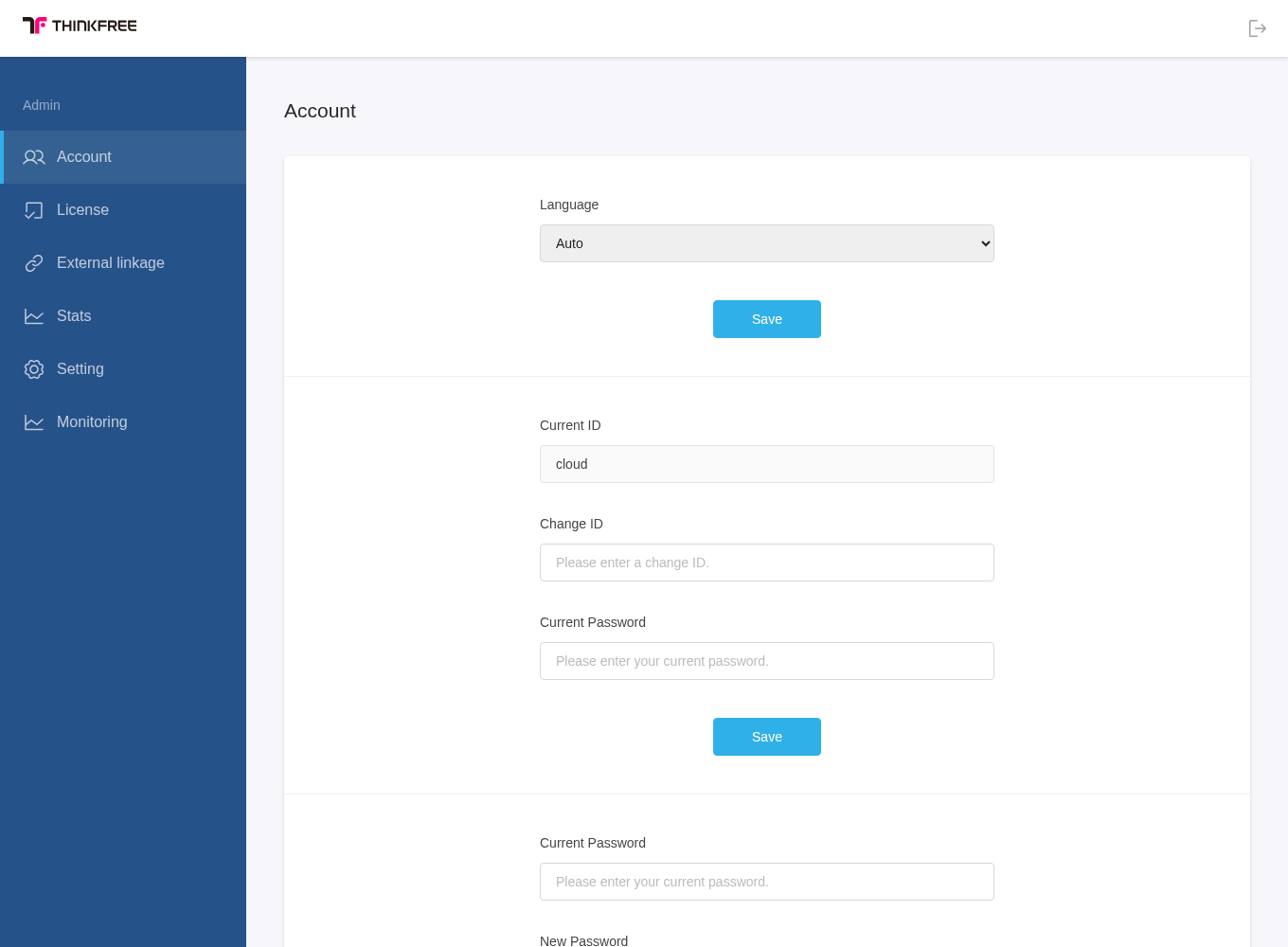
Explore the admin menus
| Menu | Main function |
|---|---|
| Account | Change the admin display language and login ID and password. |
| License | Check the applied license type and validity period, and apply a license file. |
| External linkage | Register and manage storage adapters that Office uses to open and save documents. |
| Stats | Check user counts, document-open counts, and co-editing ratios over a selected period. |
| Setting | Configure server connections, editing features, display options, web fonts, and AI options. |
| Monitoring | Check the current status of Office services and recent changes. |
Check license and service status
- In License, check the applied license type and validity period. Confirm that the license included in the Trial image or mounted into the container has been applied.
- In Monitoring, check the status of Office components. Review both the current state and changes over time.
- If Monitoring reports an error, check the affected component's server address and connection settings under Setting.
Connect storage adapters
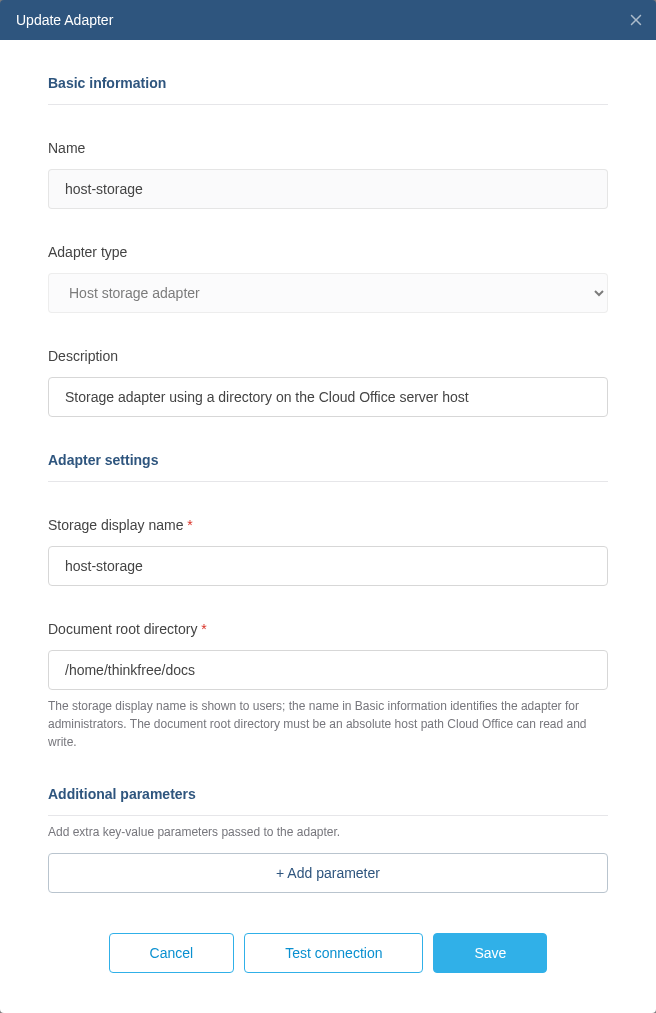
Office needs a storage adapter to read and save documents. The Trial and Free Commercial container images have a preconnected Host Storage adapter so you can test opening and saving documents immediately. This adapter uses a directory on the Office server as document storage, with the following settings.
| Field | Setting |
|---|---|
| Adapter name | host-storage |
| Storage display name | host-storage |
| Document root directory | /home/thinkfree/docs (a directory inside the container) |
In External linkage, select the Update icon for host-storage to inspect its settings.
To connect another document store, see the guide for your storage type: Host Storage, S3, WebDAV, WOPI, or HTTP Storage. Each guide explains the fields needed to register an adapter and how to verify the connection.
Check document opening and saving
The registered adapter name identifies the storage to use when creating a document URL.
For the preconnected adapter, open a document using host-storage and a path relative to its document root.
Edit and save the document, then reopen it to confirm that the changes persist.
For example, the following address opens /home/thinkfree/docs/sample.docx in the Word editor.
http://localhost:8080/cloud-office/api/host-storage/sample.docx/open?app=WORD_EDITOR&user_id=local-user&docId=hostsample001
Change settings
Open Setting and select the tab for the options you want to change. The main settings are listed below.
| Tab | Settings |
|---|---|
| Service | Connection addresses for the document conversion server and the document server that handles co-editing |
| MongoDB | Database connections for documents being edited and resources such as images |
| Valkey | Server connections and connection modes for session and cache management |
| Additional setting | Individual settings for editing features and service behavior |
| UI Customization | Product name, logo, favicon, and editor and viewer header display |
| Custom Web Font | Register and manage web fonts used by the editor |
| AI | AI Provider, model, API Key, and other settings for AI features |