HTTP Storage
HTTP Storage is an adapter for connecting storage that does not expose an S3 or WebDAV interface to Office. You can implement HTTP Storage Protocol in an existing service or build a separate HTTP Storage Provider that calls your storage API. Office sends signed requests to the Provider to read and save documents.
Run the example Provider
Before implementing your own Provider, you can run the example server supplied by Thinkfree and connect it to Office. This lets you try listing sample documents, opening them in the editor, and saving your changes.
The public example repository provides complete servers implemented with Node.js, Spring Boot, and FastAPI, along with sample documents. Each example uses a local directory on the Provider as storage and supports all protocol operations by default.
This guide names the adapter http-remote-directory. The document directory belongs to the Provider server, and Office accesses it over HTTP. The example name distinguishes this connection from Host Storage, which reads a directory on the Office server directly.
The steps below use the Node.js example. Install Node.js, then run these commands to download the example code and start the server. The example Provider runs on port 9090 to avoid a conflict with Office on port 8080.
git clone https://github.com/thinkfree/http-storage-provider.git
cd http-storage-provider
npm install
npm run init
TFO_STORAGE_HOST=0.0.0.0 TFO_STORAGE_PORT=9090 npm start
npm run init creates local configuration and prints the adapter name http-remote-directory and a generated request signing secret. Use both values in the admin page. Configure the same secret in Office and the Provider, and keep it out of source code and logs.
If a configuration file already exists, npm run init preserves its name and secret. Use that existing adapter name in the examples below.
These commands bind to network interfaces so Office in another container can connect. For Provider base URL, use a server IP address or DNS name reachable from Office, with port 9090. Inside an Office container, 127.0.0.1 refers to that container itself, so it cannot identify a Provider running on the host. Use HTTPS outside a trusted network.
In a separate terminal, run the following command from the same directory.
TFO_STORAGE_PORT=9090 npm run smoke
If you see Signed listing succeeded and the sample filenames, the Provider has successfully answered a signed listing request.
Provider examples in other programming languages
In addition to Node.js, the Git repository includes Provider examples using Spring Boot in Java and FastAPI in Python. Choose an example for your programming language and follow its guide for setup and configuration.
| Implementation | Working directory and command | Setup guide · Protocol tests |
|---|---|---|
| Node.js | Run the commands above from the repository root | Guide · test/app.test.mjs, npm test |
| Spring Boot | ./run.sh in examples/java | Guide · HttpStorageProviderApplicationTest.java, mvn test |
| FastAPI | ./run.sh in examples/python | Guide · test_app.py, .venv/bin/python -m unittest -v |
Spring Boot requires Java, Maven, and OpenSSL. FastAPI requires Python, venv, and pip. Both examples default to port 8080. Change the port and bind address in the configuration file created on first run, then restart. Java uses TFO_STORAGE_PORT and TFO_STORAGE_HOST in .env.java; Python uses port and host in .provider-config.json.
Register an HTTP Storage adapter in Office
-
Sign in to the Office admin page.
-
Under External linkage, click Add Adapter and select HTTP Storage as the type.
-
Enter the following values. This example uses
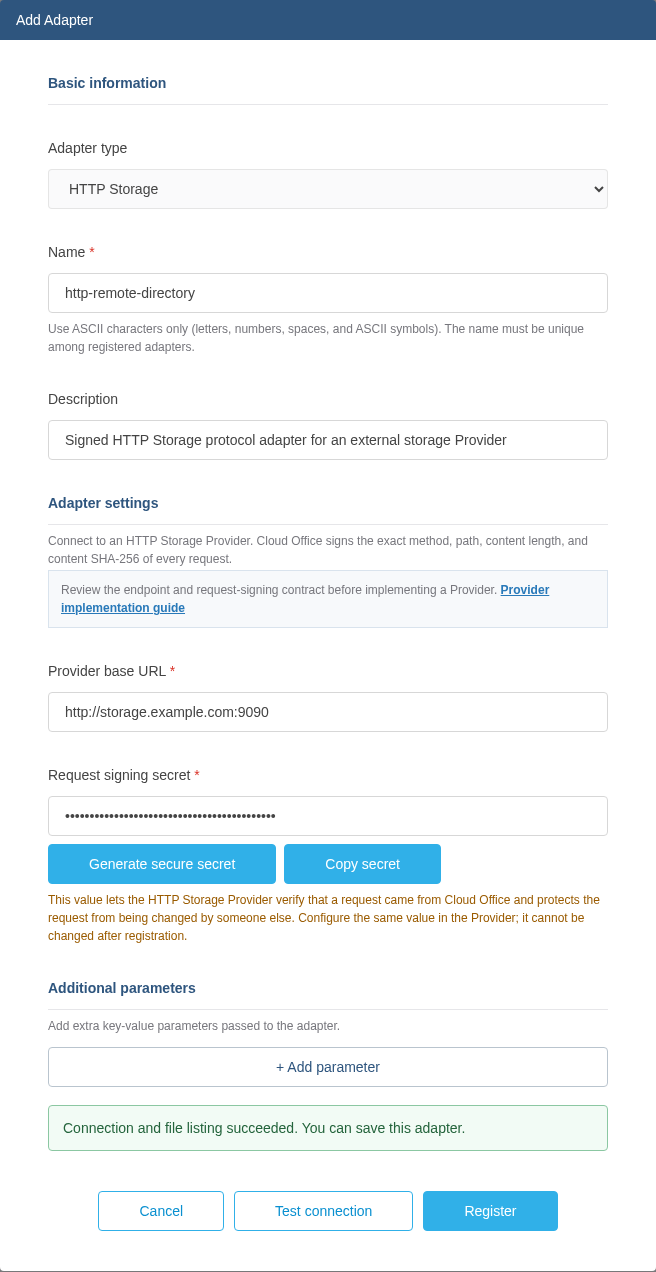
storage.example.comand port9090for the Provider server. Replace the example domainstorage.example.comwith an actual server IP address or domain reachable from Office.Field Value Name The adapter name configured in the Provider. The Node.js example uses http-remote-directoryProvider base URL http://storage.example.com:9090. Do not append/tfo-http-storage/v1or a document pathRequest signing secret The value generated by npm run init. Enter the same secret configured in the Provider -
Run Test connection. When a message confirms a successful connection and file listing, as shown below, click Register. Check that
http-remote-directoryappears as Running in the adapter list.
The following screenshot shows the Node.js example values after a successful connection test. The request signing secret is masked.
Open Browse files for the registered adapter to view the Provider's documents. The Node.js example includes sample.docx, sample.xlsx, and sample.pptx in its samples directory.
The connection test calls list at the Provider root. If the Provider does not implement listing, you can register it after acknowledging that file browsing is unavailable only when it returns the exact LIST_NOT_SUPPORTED response. Resolve authentication failures and other connection errors first.
The request signing secret is a shared secret that Office uses to sign requests and the Provider uses to verify them. Configure the same value on both sides. The Provider verifies the signature and the actual request contents to detect tampering.
The adapter name and request signing secret cannot be changed after registration. To use different values, configure them in the Provider and register a new adapter with matching values.
Create a document URL
An Office URL contains the registered adapter name and the document path relative to the Provider's storage root. Use the following address to open storage/samples/sample.docx from the Node.js example. If your Office address or port differs, replace http://localhost:8080 accordingly.
| Field | Value |
|---|---|
| Office address | http://localhost:8080 |
| Name | http-remote-directory |
| Provider storage root | storage/ in the example repository |
| File on the Provider | storage/samples/sample.docx |
| Document path in the URL | samples/sample.docx |
Append /cloud-office/api/, the adapter name, the path relative to the storage root, and /open to the Office address.
http://localhost:8080/cloud-office/api/http-remote-directory/samples/sample.docx/open?app=WORD_EDITOR&user_id=test-user&docId=httpsample001
Do not include storage/, which is the Provider's local root, or the Provider base URL entered in the admin page in the Office URL. Office uses the Provider address when sending the protocol requests described below. URL-encode each path segment containing spaces or non-ASCII characters. Set user_id to the user identifier and docId to a unique ID identifying the document in Office. See Create document URLs for app values for each file type and all options.
When Office opens the document, it sends requests to a separate protocol URL on the Provider.
Provider base URL: http://storage.example.com:9090
Document path:     samples/sample.docx

GET http://storage.example.com:9090/tfo-http-storage/v1/samples/sample.docx/info
GET http://storage.example.com:9090/tfo-http-storage/v1/samples/sample.docx/get
Pass customer session context
__tfo_adapter_http_storage_client_metadata is an optional document-open parameter for passing your application's context through Office to the Provider. It is not an adapter registration setting or a query parameter for the Provider URL. Supply a JSON string with the document-open request. The HTTP Storage Adapter reads it as an object and includes it in request.client_metadata inside each Provider request JWT.
If your Provider requires a customer document session, your application must issue a customer session token scoped to the document and a limited lifetime and include it when opening the document. The field userSessionToken below is an example; your service defines its meaning and validates it against current permissions.
const openUrl = new URL(
  '/cloud-office/api/http-remote-directory/samples/sample.docx/open',
  'http://localhost:8080',
);
openUrl.searchParams.set('app', 'WORD_EDITOR');
openUrl.searchParams.set('user_id', 'test-user');
openUrl.searchParams.set('docId', 'httpsample001');
openUrl.searchParams.set('__tfo_adapter_http_storage_client_metadata', JSON.stringify({
  userSessionToken: 'replace-with-a-short-lived-document-session',
}));
URLSearchParams handles URL encoding, so do not encode the JSON separately. The Provider verifies the JWT signature and compares the signed request details with the actual HTTP request to detect changes in transit. It must separately check the customer session and document permissions. The placeholder above does not create a valid session.
When using a signed document-open ticket, put the JSON string under the same name in command.params. Query parameters cannot override the signed value. The input JSON is limited to 4,096 UTF-8 bytes, and the complete request JWT, including metadata, must not exceed 8,192 bytes.
For every request, the Provider verifies the JWT and actual HTTP request, then reads request.client_metadata.userSessionToken and checks the user, document, expiry and allowed operation against your service's session store. Reject operations that require a customer session if the value is missing, expired or revoked. The public examples verify request signatures; you implement this customer session check for your own service.
Metadata is not encrypted, and query parameters appear in the URL. Do not put login cookies or long-lived credentials in it. See Client metadata for the complete input and access-control requirements.
Try implementing your own Provider
To implement a Provider, understand the document lifecycle of opening, editing, saving, and closing a document in Office and the role of each operation below. Office uses info to retrieve document information and get to download its contents when opening it. It uses put to save the edited document to storage. If you provide locking, use lock and unlock to lock and unlock documents during editing.
Before opening the editor, Office calls the Provider's info endpoint to check the document information. The Provider must validate the request and document read permissions, returning an error if access is denied. The order and frequency of subsequent requests can vary with editor state.
When building on an example, replace the filesystem read and write operations with calls to your storage API. Retain request authentication and path validation. See HTTP Storage Protocol for the complete request and response contract.
| Operation | Purpose | Implementation scope |
|---|---|---|
info, get | Retrieve document information and download documents | Required to open documents |
put | Save the complete edited document | Implement if you provide saving |
list | List the immediate children of a directory | Implement if you provide file browsing |
lock, unlock | Lock and unlock documents | Implement both or declare both unsupported |
mkdir, rename, delete | Create directories, rename entries, and delete entries | Implement the features you provide |
Process requests in the following order.
- Check the request method, path, body format, and size. Calculate the length and SHA-256 digest of the received body.
- Verify the JWT signature and validity period. Compare the signed adapter name with the Provider configuration, and the signed method, path, body length, and SHA-256 digest with the actual request. Reject reused request IDs.
- Check document access permissions for the authenticated request, then perform the storage operation. For an unsupported optional operation, return its exact
501response. - Send the actual byte length in
Content-Lengthforinfo,list,get, andputresponses. For saves, verify the request and permissions before writing the document, then return a JSON object containing only the saved document'sdocId. Preserve the existing document if verification or saving fails. See PUT response for its format and stable-ID rules.
The maximum sizes are 5 MiB each for info, list, and put response JSON and 300 MiB for a document. These JSON responses and get responses must not use chunked transfer or compression. See Signature verification, Response framing and size limits, and Unsupported operations for the exact rules.
Saving fails if put is unsupported. When locking is unsupported, Office treats the exact lock and unlock unsupported responses as successful, but no actual lock is created. Define and verify whether concurrent edits use last-write-wins behavior or reject conflicts in your storage.
Verify the connection
- Run the example protocol tests to check that invalid signatures, reused JWTs, invalid paths, and oversized requests are rejected.
- Open, edit, save, and reopen a sample document. Use test documents to verify any
list,lock,unlock,mkdir,rename, anddeleteoperations you implemented. - If you use customer sessions, verify missing, expired, revoked, and cross-document session values are denied, read-only sessions cannot save, and an authorization-service outage does not allow storage access.
- If you omit an optional operation, check that it returns the exact unsupported response after authentication and is distinguishable from an actual storage failure.
See Protocol error responses for detailed error codes and the Provider operations guide for access control, replay protection, and file handling in production.