Connect a WebDAV adapter
A WebDAV adapter lets Office open and save documents on a WebDAV server. Enter the server URL and any required credentials, then specify a root path to define which documents Office can use.
Prepare connection details
Prepare a WebDAV server URL that the Office server can access. If the server requires authentication, also prepare a username and password with permission to list, read, and save documents. If specifying a root path, check the subdirectory you want to use relative to the server URL.
Add a WebDAV adapter
The screenshot below shows example values in the admin page. Enter the values for your WebDAV server.
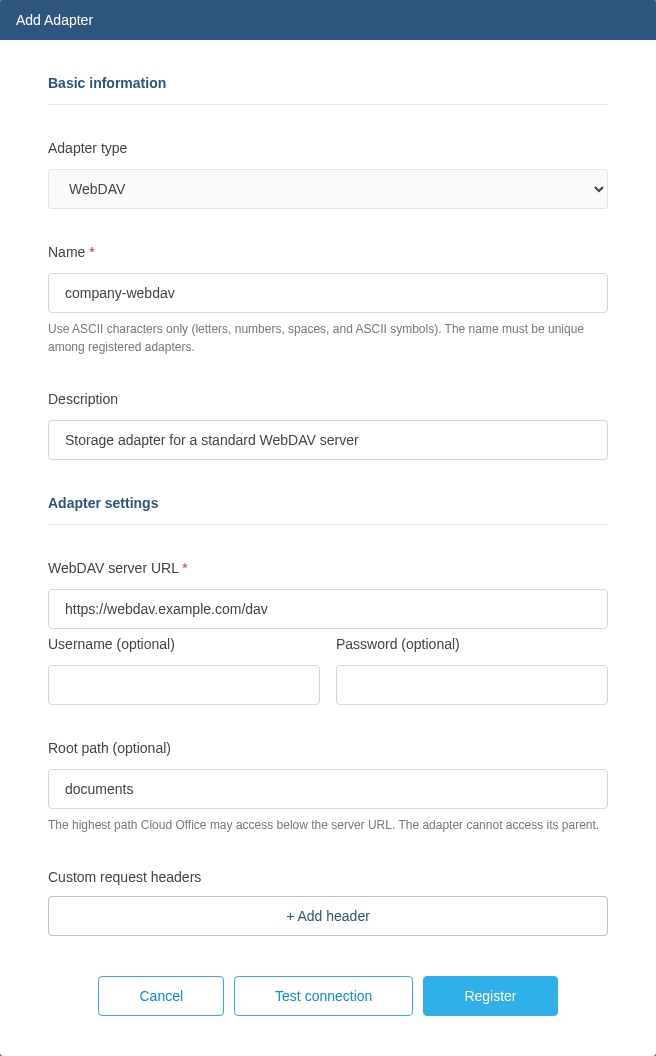
- Under External linkage in the Office admin page, click Add Adapter.
- Select WebDAV as the Adapter type.
- Enter the following connection details.
| Field | Value to enter |
|---|---|
| Name | A unique adapter name for document URLs. Example: company-webdav |
| Description | What the adapter is used for |
| WebDAV server URL | The base address for accessing WebDAV. Example: https://webdav.example.com/dav |
| Username (optional) | The username for a server that requires authentication |
| Password (optional) | The password for that user |
| Root path (optional) | The path to use under the server URL. Example: documents |
If you specify a root path, Office uses documents under that path.
If the server requires additional headers, click Add header under Custom request headers and enter the name and value. For example, if the server uses X-Workspace-Id to identify a workspace, enter X-Workspace-Id as the name and the workspace ID as the value.
A custom Authorization header cannot be combined with Basic authentication configured through the username and password fields.
Test and register the connection
- Click Test connection to check that Office can list files at the specified path.
- If the test succeeds, click Register.
- Create a document URL using the registered adapter name and the document path relative to the root.
- Edit and save a test document, then reopen it to check that your changes persist.
If the connection test fails, check the server URL, credentials, and root path. Verify save permissions separately even if file listings and documents open successfully.
Create a document URL
This example uses the adapter name company-webdav, server URL https://webdav.example.com/dav, and root path documents described above.
| Field | Value |
|---|---|
| Office address | http://localhost:8080 |
| Name | company-webdav |
| WebDAV server URL | https://webdav.example.com/dav |
| Root path (optional) | documents |
| Document address on WebDAV | https://webdav.example.com/dav/documents/reports/Quarterly%20Report.docx |
| Document path in the URL | reports/Quarterly Report.docx |
Append /cloud-office/api/, the adapter name, the path relative to the root, and /open to the Office address.
http://localhost:8080/cloud-office/api/company-webdav/reports/Quarterly%20Report.docx/open?app=WORD_EDITOR&user_id=local-user&docId=webdavreport001
Do not repeat the WebDAV server URL or root path documents in the Office URL. If Root path (optional) is empty, use the entire path under the server URL as the relative document path. For this document, that would be documents/reports/Quarterly Report.docx.
Replace the Office address and port and the adapter name with your actual values. Preserve / in paths and URL-encode each segment, including spaces and non-ASCII characters. See Create document URLs for user and document identifiers, app values for each file type, and all options.