Admin console and operations
Service operators use the Office admin console to manage licenses, storage adapters, runtime connections, feature settings, usage data, and component status.
Open /cloud-office/ on your Office server to access the admin console. If you ran the Set up Office example locally, open http://localhost:8080/cloud-office/.
Sign in with the default ID cloud and password weboffice. If you changed the administrator account, use the updated ID and password. See Configure Office Settings for the initial checks after signing in.
Secure access first
When operating the service, you must configure a firewall or network access controls to prevent external access to the admin page.
Initial review order
Single-container images come with the basic settings needed to run Office, so the default configuration requires no additional setup in the admin console. If you change the configuration or need to check service status, review the pages in this order.
- Setting - Check database, cache, conversion, and document-server connections.
- License - Apply the issued license and check its validity period.
- Monitoring - Confirm that each component reports a healthy state.
Main menus
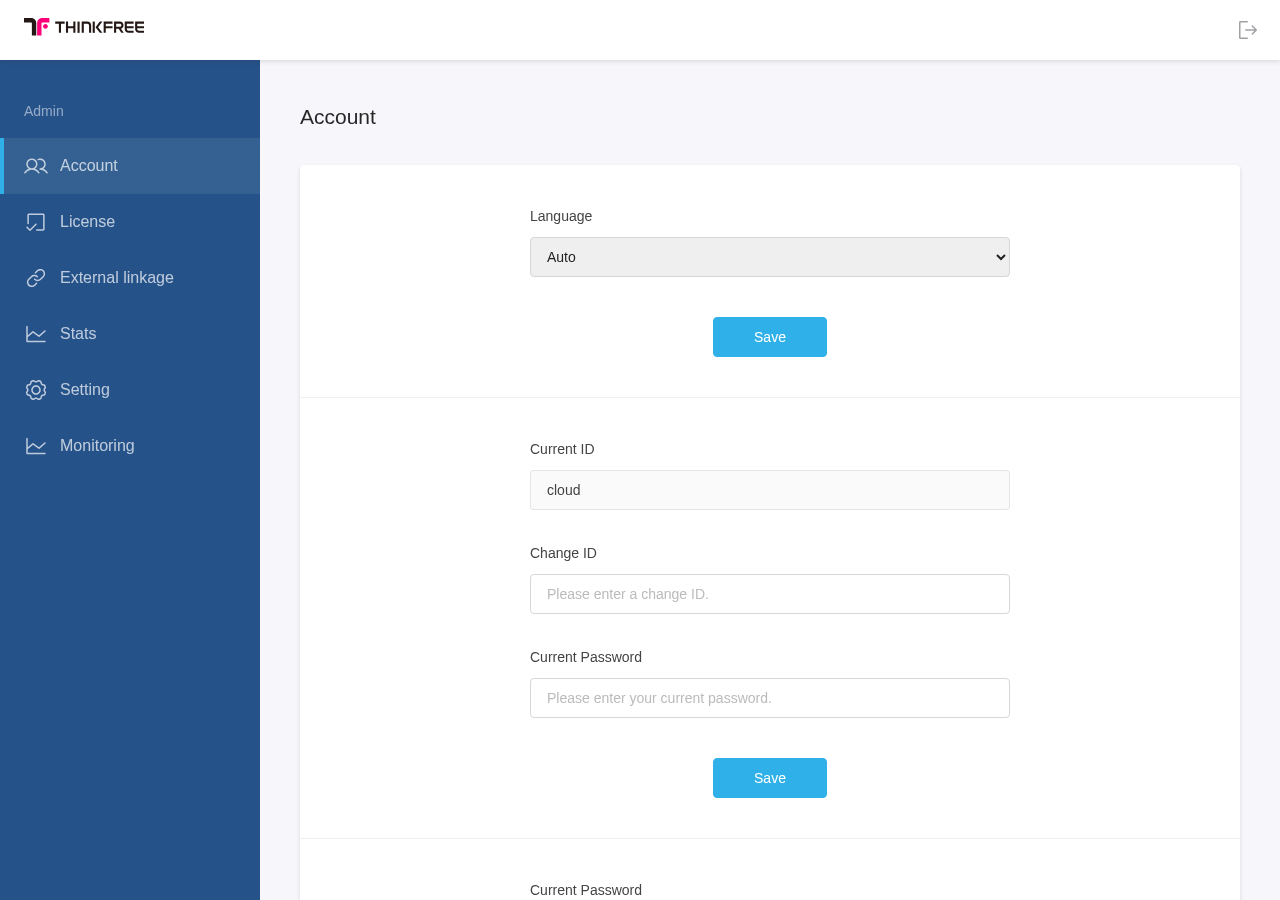
Account
Change the admin display language and login ID and password. After changing the ID or password, sign in again with the new credentials.
License
Check the license type, validity period, and concurrent connections. Use Upgrade License to apply an issued license file.
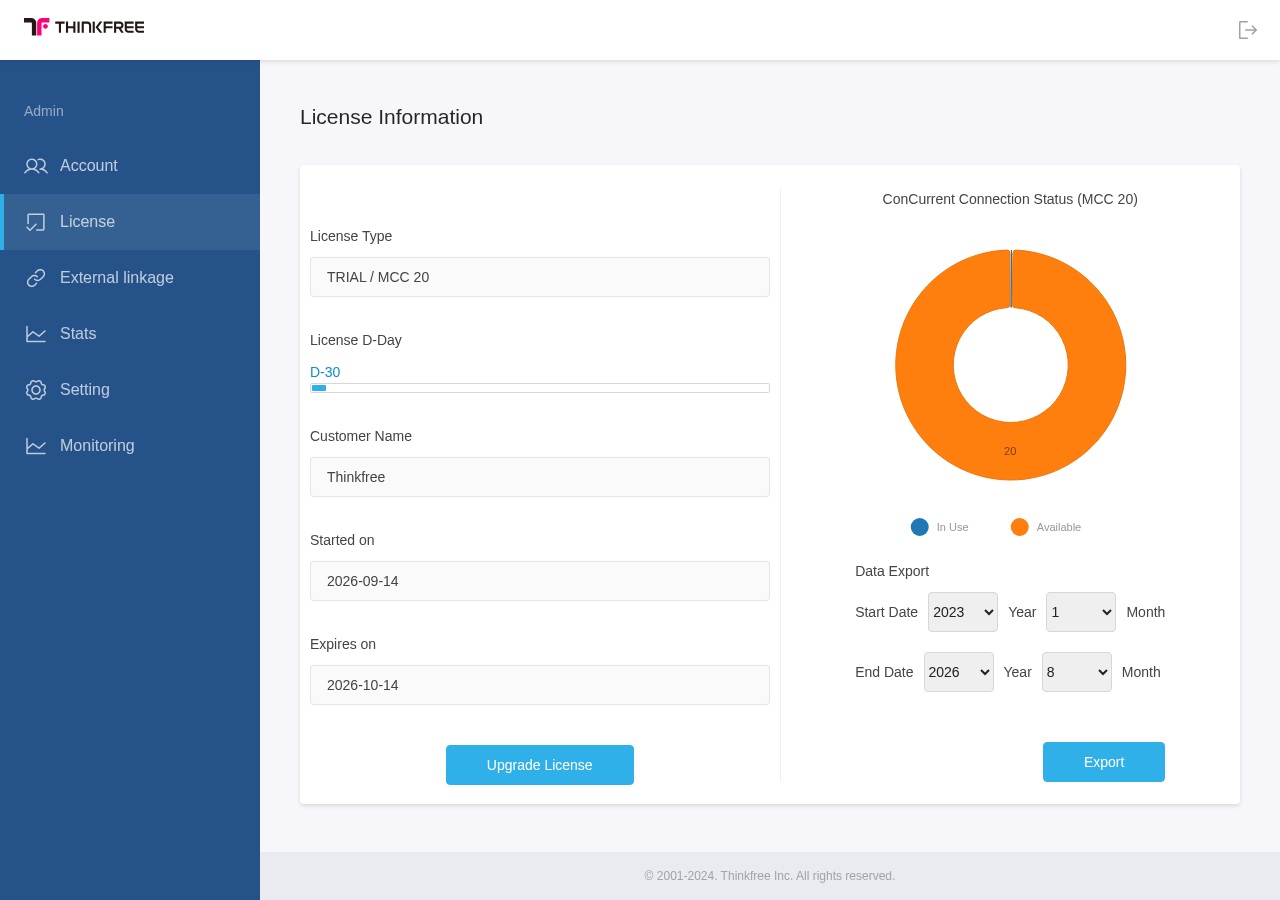
The license type, term, and connection count in this capture are values displayed in a local test environment. See the Office license guide for the terms of the available licenses.
External linkage
Register adapters, start or stop them, and change their settings. Connected storage appears in this menu's adapter list.
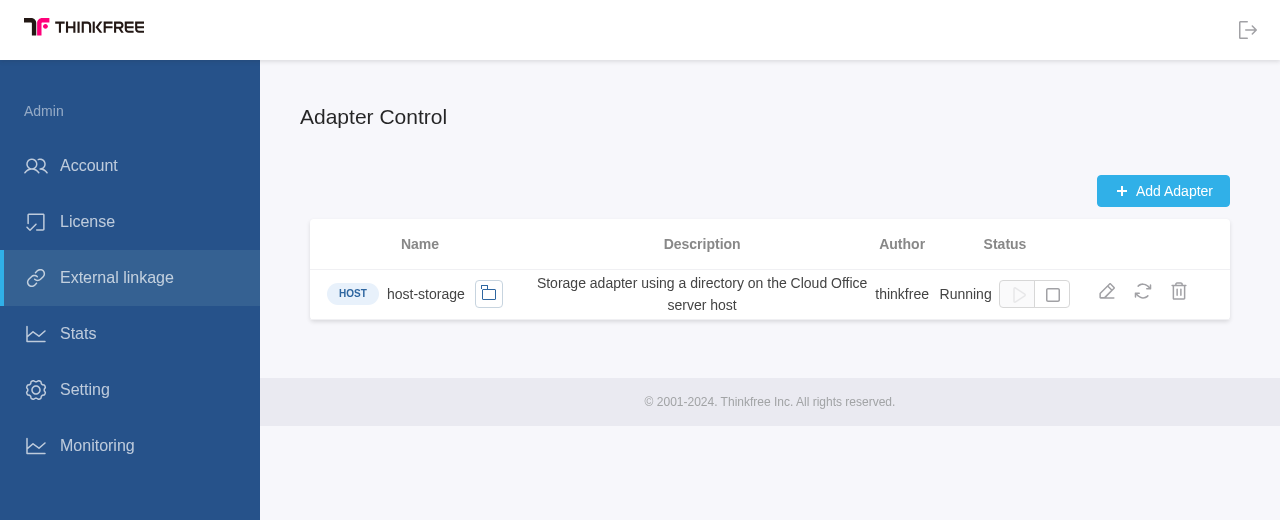
See the Host Storage, S3, and WebDAV guides to connect a server document directory or S3/WebDAV storage.
To connect storage your organization already owns through HTTP Storage, you need an HTTP Storage Provider that implements the HTTP Storage Protocol. Add the protocol to your existing storage service, or implement a separate service that calls your storage API.
Once you register the Provider as an HTTP Storage adapter, Office sends signed HTTP requests to fetch document metadata and read files. The Provider validates each request, retrieves the document from storage, and returns it. To support saving edits, also implement the operation that writes files sent by Office back to storage.
See HTTP Storage for adapter registration and HTTP Storage Protocol for request and response formats, authentication, and operation-specific implementation rules.
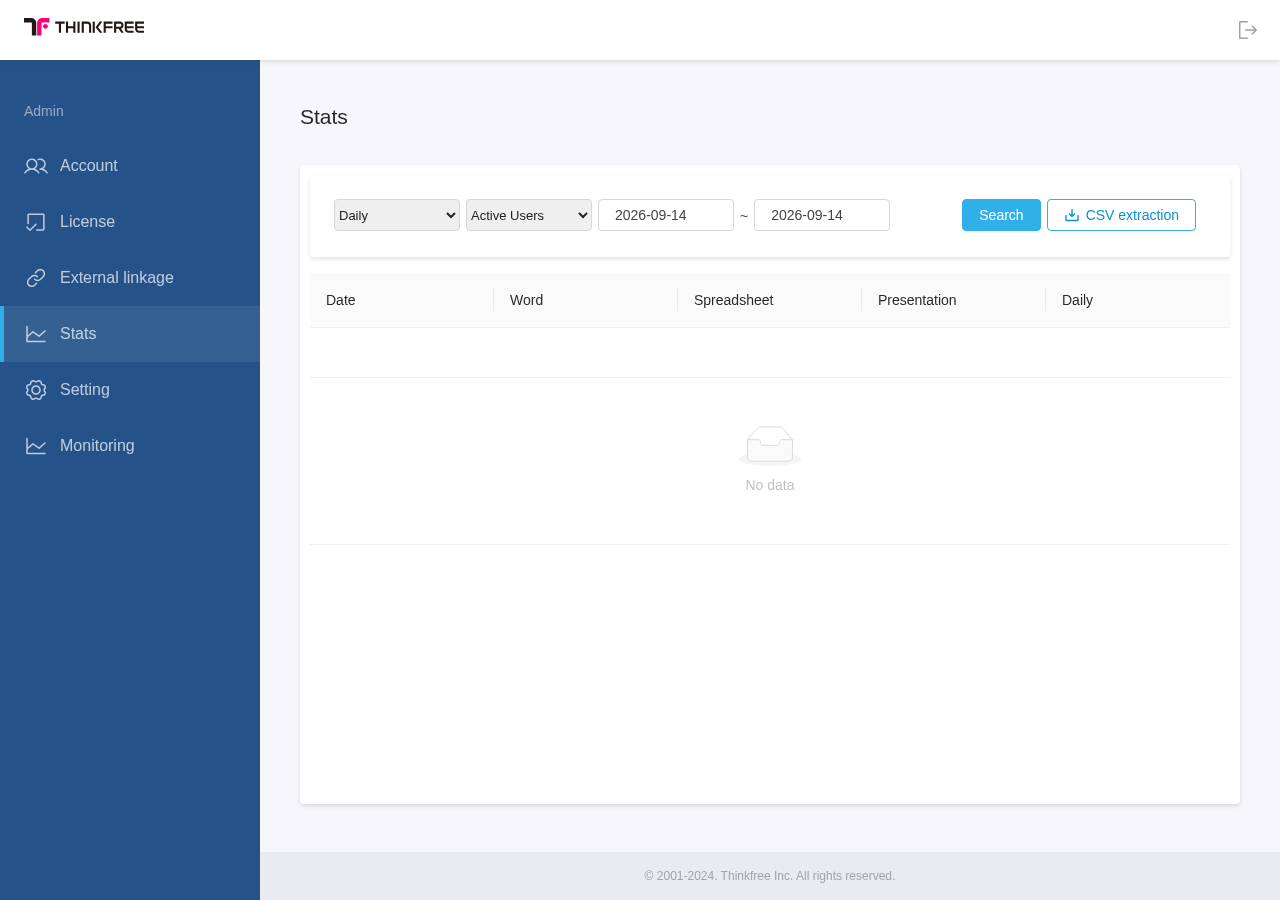
Stats
Select a period and metric to view usage statistics and export CSV. No data appears when there is no usage history for the selected period.
Setting
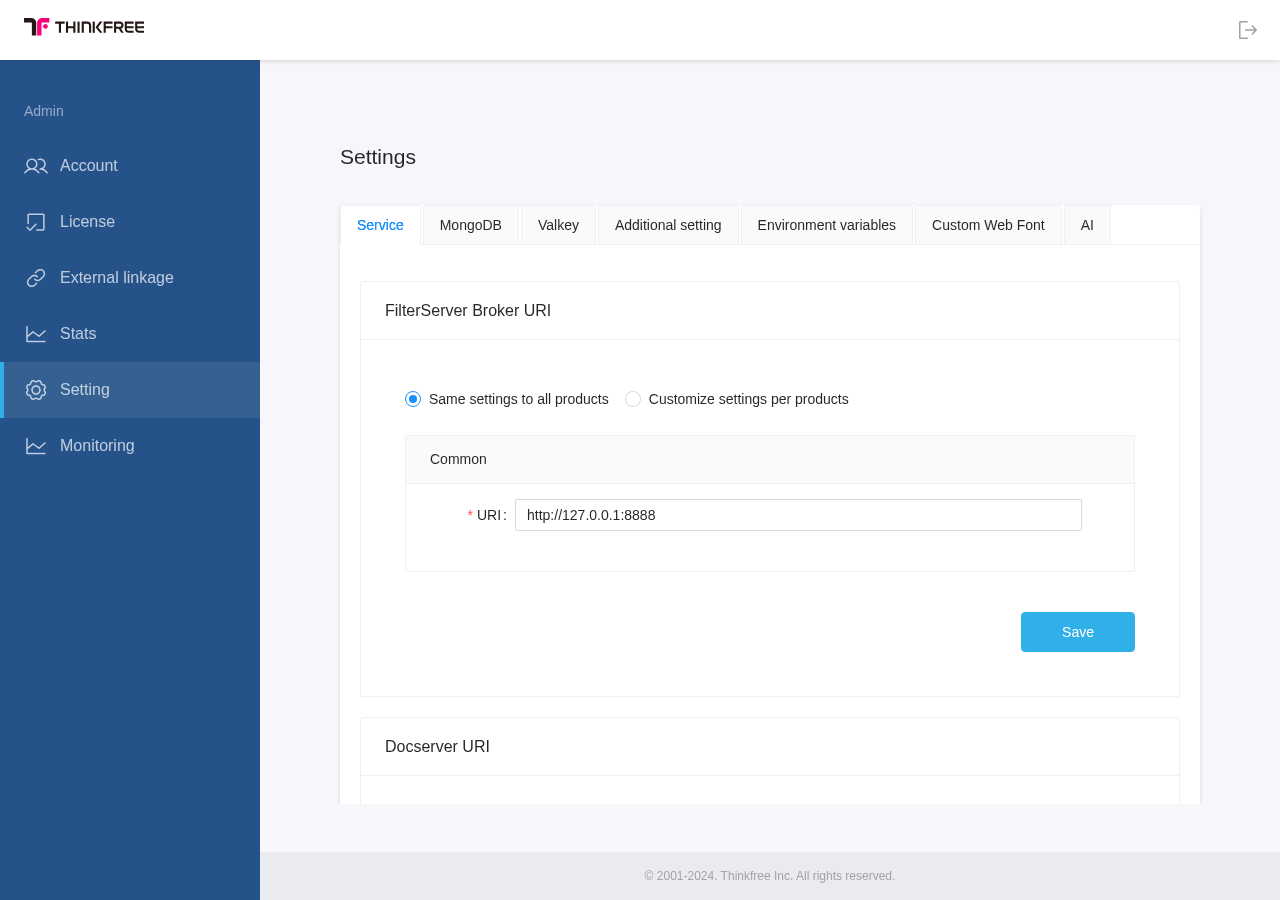
Configure server connections and feature options. When Office runs in a single container, the required connections are preconfigured and do not need changes for the default setup.
The Service tab below shows the document conversion server and document server addresses. Check database and cache settings in the MongoDB and Valkey tabs, respectively.
Monitoring
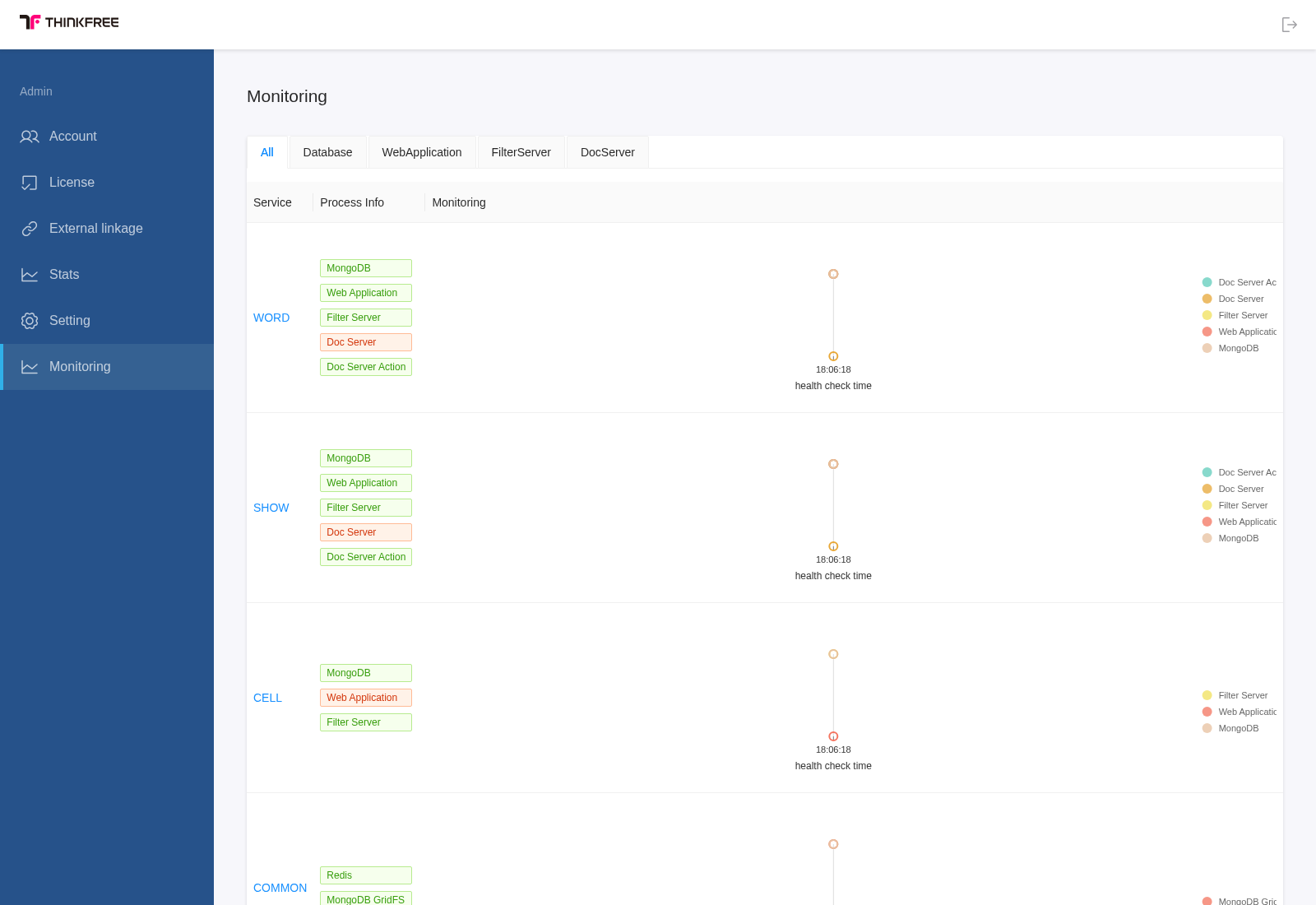
Check service status and changes over time. If a component reports an error, check its server connection details under Setting.
Important setting groups
| Setting | Operational purpose | Verification |
|---|---|---|
| MongoDB host and connection details | Separate editing document databases for Word, Spreadsheet, and Presentation | Product MongoDB tags in Monitoring |
| MongoDB GridFS | Shared binary resources such as images and attachments | MongoDB GridFS tag and documents containing media |
| Valkey connection details and LB mode | Session, co-editing, and cache state; use standalone, cluster, or sentinel mode to match the deployment | Cache status and session continuity |
| FilterServer broker URI | Document conversion | Open a supported sample file and check Filter Server status |
| Docserver URI and task receiver URI | Word and presentation co-editing | Check both Doc Server status and a collaboration test |
| Additional settings | Property values that differ from defaults | Reopen affected pages or editor features |
Additional settings list only values that differ from defaults. You need the exact key name to add a setting. Saving applies the entire list; deleting an existing row takes effect immediately and restores that key's default. Review all rows before saving or deleting.
See Data persistence and backup and the Production checklist for data retention and recovery.